Factories > Overview
Warp Factories quickstart
Set up a factory, connect your repositories, and take your first work item from prompt to pull request.
Create a factory and turn a request into a pull request.
Prerequisites
Section titled “Prerequisites”- A Warp account and membership in a Warp team.
- Team or workspace admin access, or the team-level Warp Factories Editor role.
- Available usage in your team’s balance for factory runs. Add usage if needed. See plans and funding for factory runs.
- Access to the repositories you want the factory to work on.
Set up your factory
Section titled “Set up your factory”-
Open the Warp Factories web app and sign in if prompted. To switch teams, click your avatar, hover over the team name, and select another team.
-
Click + next to Factories.
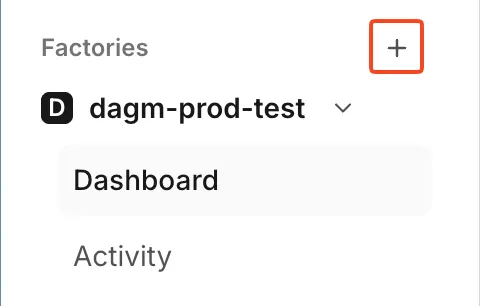
The factory setup control in the sidebar. -
On the “Connect your code hosts” screen, select GitHub, GitLab, or Azure DevOps, then choose the organization or group to connect. For Azure DevOps, also choose a project. Click Next.
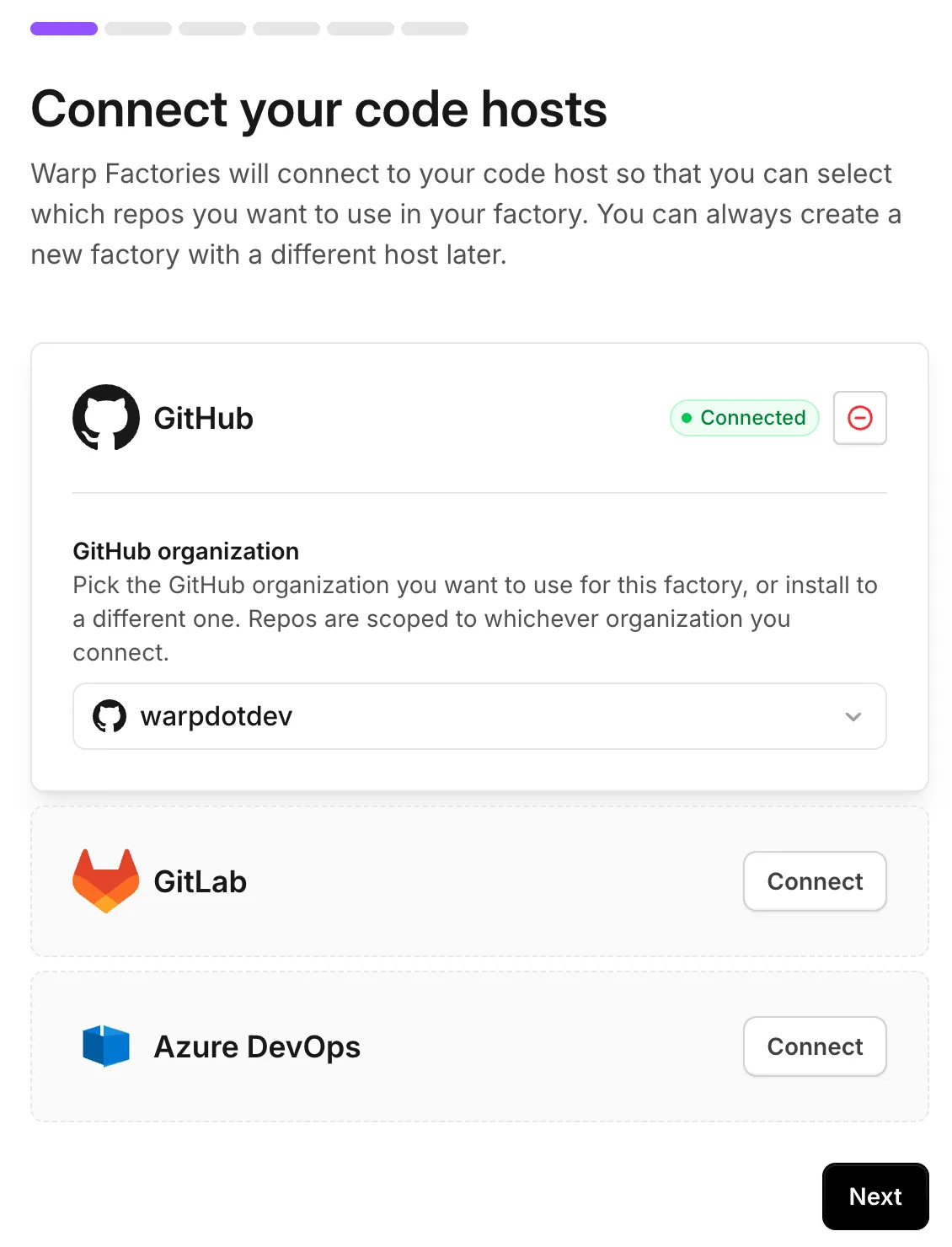
The GitHub organization dropdown in factory setup. If your organization restricts connections to Warp, involve a code-host administrator. Azure DevOps requires one-time administrator approval; you can send the approval link during setup.
For other code forges, see Connecting other code forges to your factory.
-
On the “Set up your factory” screen, select the repositories your factory will work on. See sizing a factory.
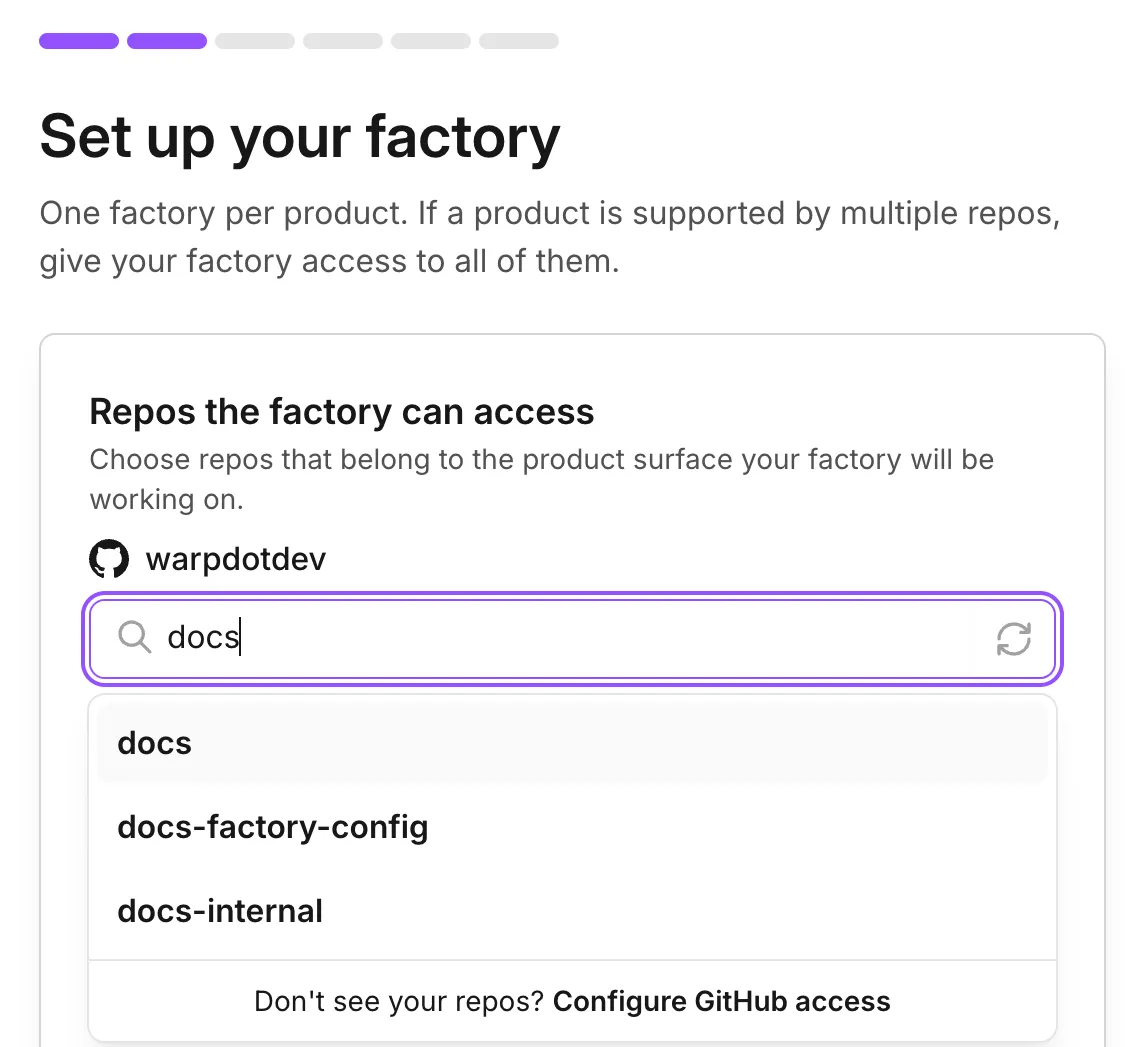
A repository search during factory setup. -
Enter a “Factory name”. This sets the default foreman name, the handle your team @-mentions in Slack and Linear. Click Next.
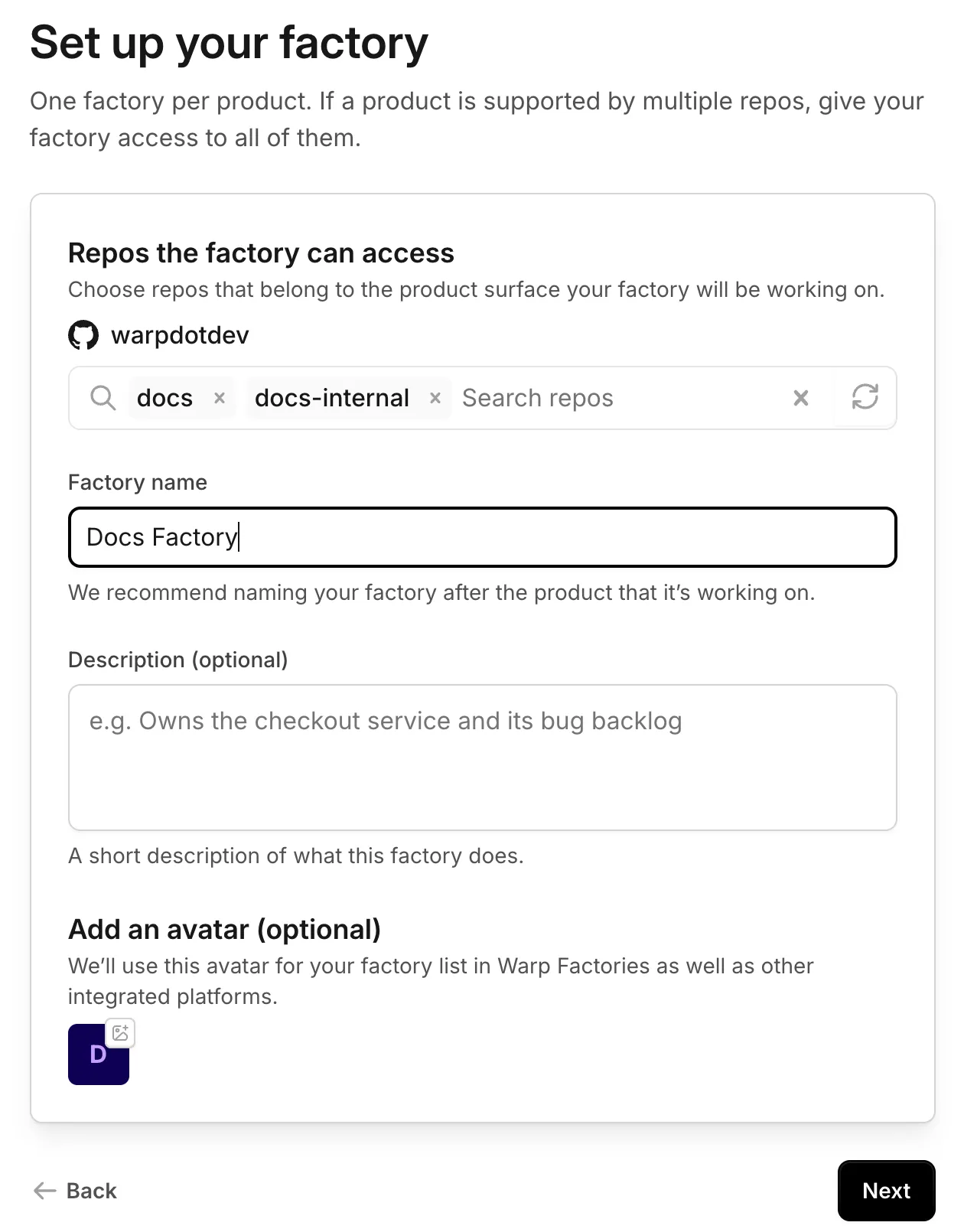
The factory name and optional details during setup. -
Review the default Blueprint workflow in setup. Configure models and tools in worker settings.
-
Optionally, connect Slack and an issue tracker. You can add either later from Connect your factory.
Warp creates the factory and opens its dashboard.
Send your first work item
Section titled “Send your first work item”Send your foreman a request from the Warp Factories web app, Slack, or an issue tracker.
-
In the web app sidebar, click New Chat.
-
In the dropdown below the prompt input, choose your factory.
-
Enter one small, verifiable change, then click the send arrow:
Example first request Add a "Local development" section to README.md that summarizes the setupsteps from CONTRIBUTING.md. Keep the change to that one file, run therepo's lint check, and open a pull request. -
The foreman dispatches the workers needed for the request and posts progress where it started. In the sidebar, click Runs to follow the foreman and child runs. Requests for input also appear in the Waiting on you status filter on Home.
If you sent the request from Slack, you can follow along in its thread:
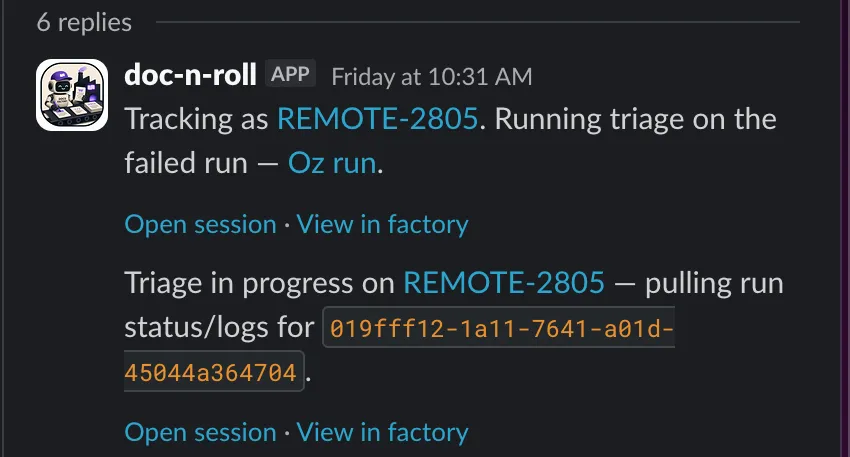
A factory Slack thread with live progress. -
When the foreman hands back the pull request, review the changes and validation results, then merge it according to your normal process.
Optional: tune your factory
Section titled “Optional: tune your factory”Review your first pull request for gaps. Change workflow steps or approvals in the Blueprint. Adjust worker instructions, skills, models, or tools in worker configuration. Test one change at a time before expanding the workload.
Next steps
Section titled “Next steps”- Connect your factory - Configure intake sources
- Blueprints - Customize workflow stages and human decisions
- Troubleshooting Warp Factories - Fix common setup and run issues